Malvertising Warning Signs: What to Look For and How to React
Legitimate ad networks often serve malicious code, meaning the danger comes from trusted sites rather than shady URLs, requiring a shift in how you assess web traffic risks.

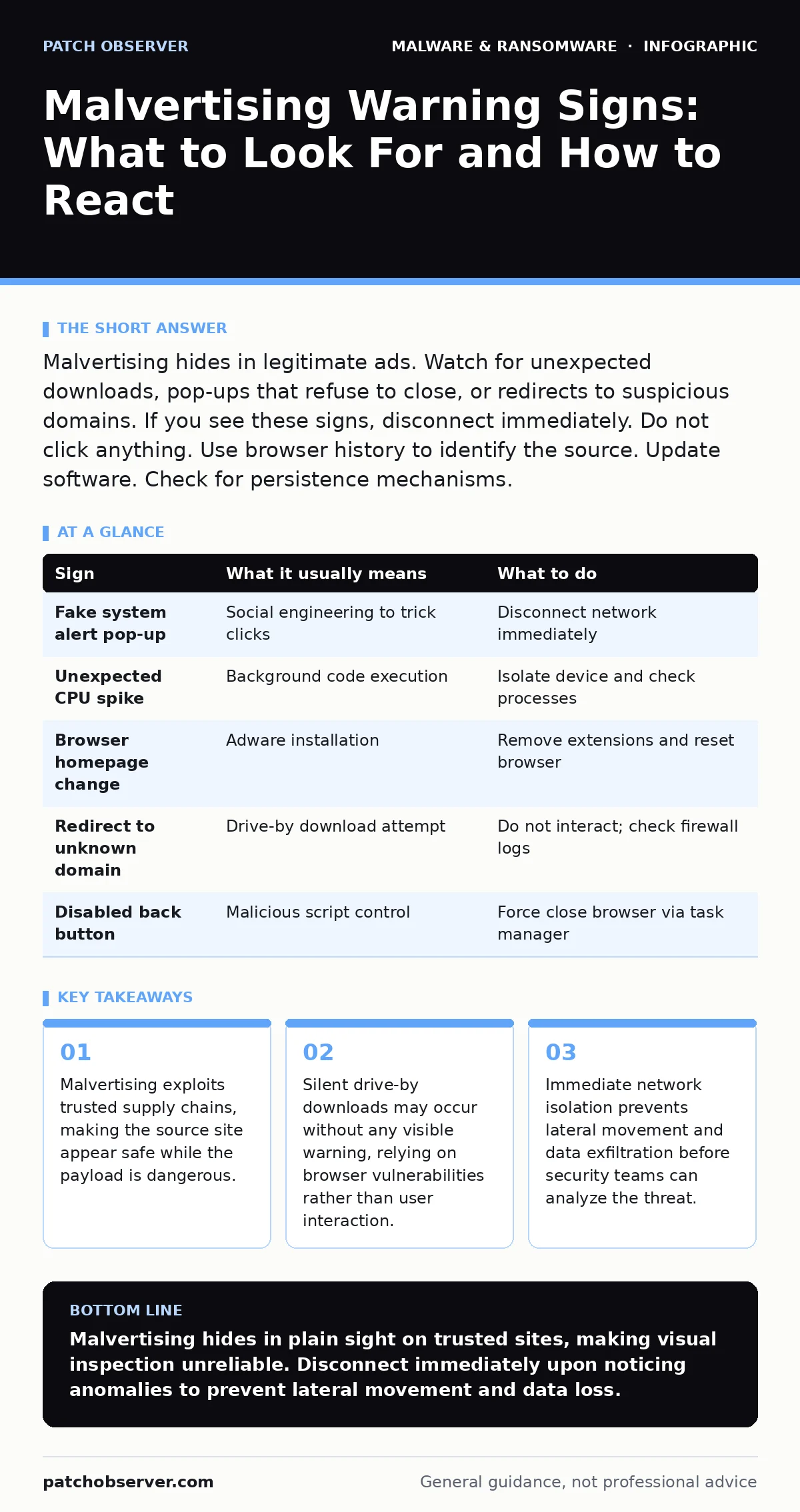
Malvertising hides in legitimate ads. Watch for unexpected downloads, pop-ups that refuse to close, or redirects to suspicious domains. If you see these signs, disconnect immediately. Do not click anything. Use browser history to identify the source. Update software. Check for persistence mechanisms.
Immediate Visual Indicators of Malvertising
The first signs of malvertising are often visual anomalies that disrupt the normal browsing experience. You may notice a pop-up window that mimics a system alert or a browser notification. These overlays often claim your device is infected or that a prize has been won. The text usually contains urgent language designed to trigger a panic response. Legitimate advertisements rarely demand immediate action through fake system dialogs. If a window appears over your current tab and cannot be closed with the standard close button, treat it as a potential threat. The design often matches the operating system interface to reduce suspicion.
Subtle Technical Signs That Are Easy to Miss
Some malvertising campaigns operate silently, leaving no visible trace on the screen. You might notice a sudden spike in CPU or network usage while browsing a legitimate news site. This indicates a background process is executing code. Another sign is an unexpected change in browser settings, such as a new homepage or search engine. These changes suggest an adware component has installed itself. You may also see failed connection attempts to known malicious domains in your firewall logs. These redirects happen faster than human perception, often completing before you can react. The absence of visual cues makes these attacks harder to detect manually.
Understanding the Supply Chain Vulnerability
Malvertising succeeds because it inserts malicious code into legitimate advertising networks. A trusted news site purchases ad space from a major network. That network serves an ad that contains a redirect to a malicious server. The final destination hosts the malware payload. This chain means the initial website is not necessarily compromised. The vulnerability lies in the ad serving infrastructure. You cannot rely on the reputation of the website you are visiting to determine safety. The ad itself is the vector. This separation of source and payload complicates blocking efforts, as firewalls may allow traffic to the legitimate ad network.
Immediate Response Steps When You Spot a Threat
When you identify a potential malvertising incident, your first action must be to disconnect the device from the network. Unplug the Ethernet cable or disable Wi-Fi. This stops any ongoing data exfiltration or command-and-control communication. Do not attempt to close the browser window yet, as the process may still be running in memory. Take a screenshot of the screen if possible, preserving evidence for later analysis. Avoid clicking any links or entering credentials. The goal is containment. Once isolated, you can begin the investigation without risking further spread to other devices on the local network.
Investigating the Source and Scope
After isolation, check the browser history to identify the last visited pages before the incident. Look for any redirects to unfamiliar domains. Use a sandboxed environment to revisit those pages if necessary, ensuring the analysis machine is isolated. Check for new processes running in the task manager that you do not recognize. Look for scripts injected into legitimate websites. You should also review firewall logs for outbound connections to unusual IP addresses. This helps determine if the malware has already communicated with a remote server. Understanding the scope is necessary for deciding whether a full system wipe is required.
See also: API Security Checklist: Verify Access, Data, and Rate Limits
Cleaning and Preventing Future Incidents
Once the threat is contained, you must remove the malicious components. Run a full system scan using updated antivirus software. Check for persistence mechanisms such as scheduled tasks or startup items. Delete any suspicious browser extensions. Clear the browser cache and cookies to remove tracking scripts. Update your browser and operating system to patch known vulnerabilities that the malvertising might have exploited. Consider using ad blockers to reduce exposure to malicious ads. These tools prevent the rendering of ad content, breaking the delivery chain. Regular updates close the entry points that drive-by downloads rely on.
Table: Common Malvertising Signs and Actions
| Sign | What it usually means | What to do |
|---|---|---|
| Fake system alert pop-up | Social engineering to trick clicks | Disconnect network immediately |
| Unexpected CPU spike | Background code execution | Isolate device and check processes |
| Browser homepage change | Adware installation | Remove extensions and reset browser |
| Redirect to unknown domain | Drive-by download attempt | Do not interact; check firewall logs |
| Disabled back button | Malicious script control | Force close browser via task manager |
Integrating with Broader Security Practices
Malvertising is often part of a larger attack strategy. It may deliver ransomware or spyware. Understanding how it fits into the broader threat model helps in defense. You should correlate malvertising alerts with other security events. For instance, if you see signs of browser hijackers, the root cause might be malvertising. Review your device hardening policies to ensure browsers are configured securely. Disable unused plugins and scripts. Regularly test your email attachment scanning rules, as malware often uses multiple vectors. Combining web security with endpoint protection creates a layered defense.
Key takeaways
- Malvertising exploits trusted supply chains, making the source site appear safe while the payload is dangerous.
- Silent drive-by downloads may occur without any visible warning, relying on browser vulnerabilities rather than user interaction.
- Immediate network isolation prevents lateral movement and data exfiltration before security teams can analyze the threat.
Malvertising hides in plain sight on trusted sites, making visual inspection unreliable. Disconnect immediately upon noticing anomalies to prevent lateral movement and data loss.
Frequently asked questions
Can antivirus software stop malvertising?
Antivirus can detect the payload after it downloads, but it may not prevent the initial redirect. Behavioral analysis and web filtering are more effective at blocking the delivery mechanism before execution.
Is using an ad blocker enough protection?
Ad blockers reduce risk by preventing ad content from loading, but they do not protect against all vulnerabilities. They should be combined with updated browsers and system patches for complete coverage.
How do I know if my browser was hijacked?
Look for changes in your default search engine, homepage, or new toolbars you did not install. Sudden slowdowns or excessive pop-ups also indicate that malicious extensions may have altered your browser settings.
Should I reinstall my operating system after malvertising?
Reinstallation is recommended if the malware established persistence or if you cannot identify all malicious components. This ensures a clean baseline and removes any hidden backdoors that scanning might miss.
How this guide was produced: written by the Patch Observer editorial team with AI assistance, checked against the public references listed below, and reviewed when the facts change. See our editorial policy or report an error.