Home Router Security Best Practices for Lasting Protection
Most home networks fail because the router itself is an unpatched server that broadcasts your digital identity to anyone within range.
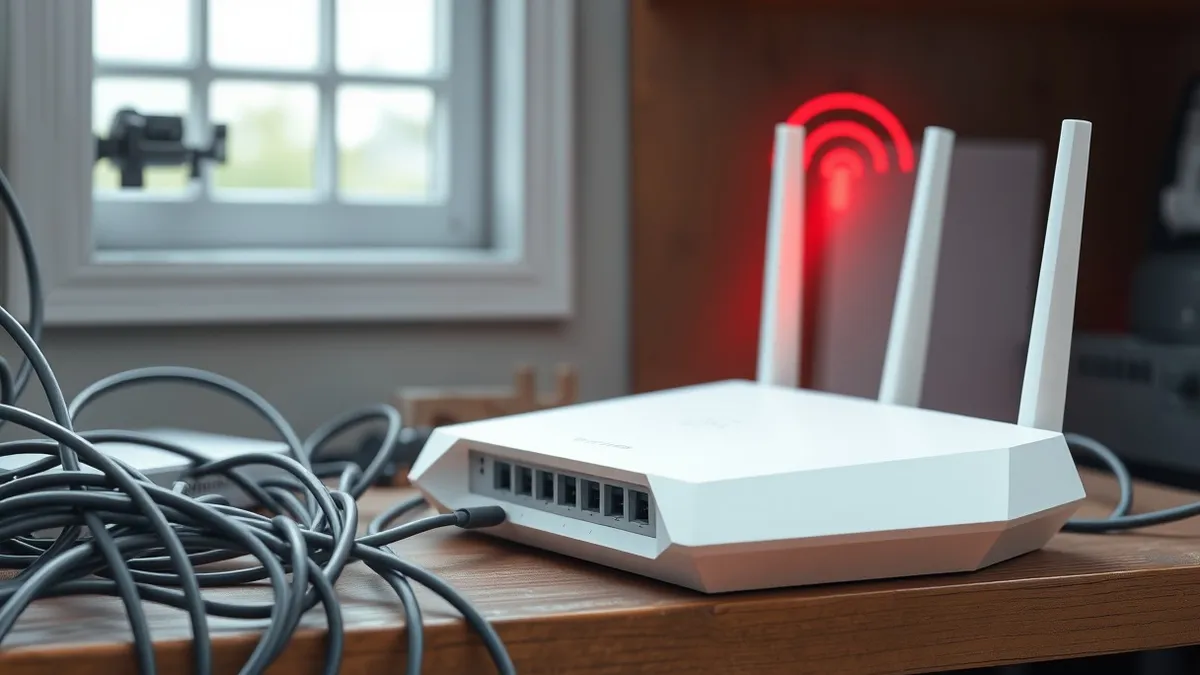
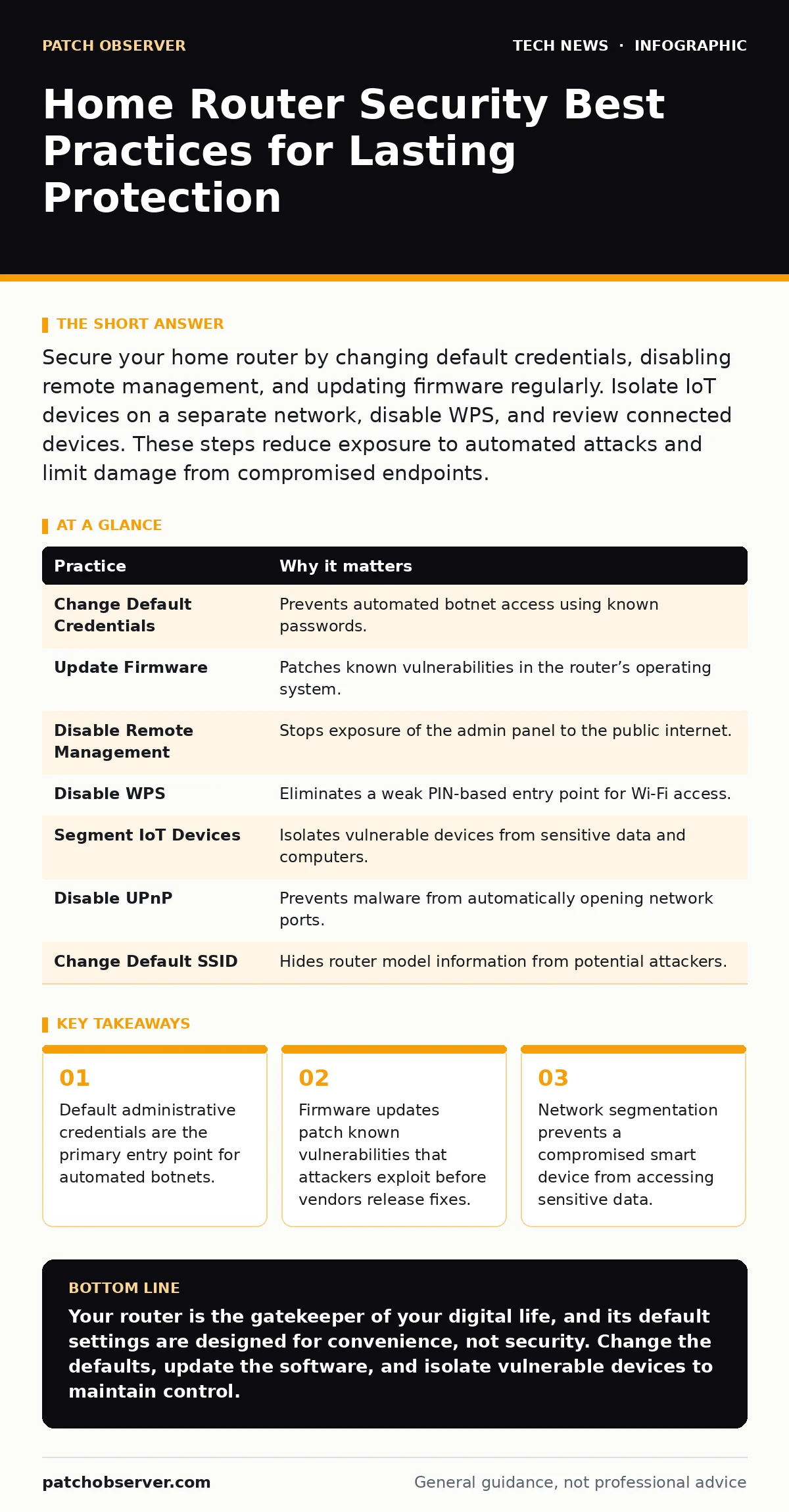
Secure your home router by changing default credentials, disabling remote management, and updating firmware regularly. Isolate IoT devices on a separate network, disable WPS, and review connected devices. These steps reduce exposure to automated attacks and limit damage from compromised endpoints.
1. Change Default Administrative Credentials
Home routers ship with factory-set usernames and passwords. These defaults are documented in public databases and known to every automated scanner on the internet. Attackers do not need to hack your router; they simply try the known combination. Using a weak password offers little resistance against brute-force tools that can test thousands of combinations per second.
You must create a unique administrative password that differs from your Wi-Fi password. This separation ensures that if your Wi-Fi key is shared or leaked, the router’s configuration remains protected. The administrative interface controls the entire network, so its protection is the highest priority.
2. Update Firmware Regularly
Router firmware contains the operating system and all network services. Vendors release updates to fix security holes discovered after the device was manufactured. Leaving firmware outdated is equivalent to running an operating system with known, unpatched vulnerabilities. Automated attacks often target these known flaws because the exploit code is readily available.
Enable automatic updates if your router supports this feature. If not, check for updates manually every few months. This practice ensures you receive security patches as soon as they are available. It also provides minor improvements to stability and performance.
3. Disable Remote Management
Remote management allows you to configure your router from outside your home network. This feature is often enabled by default for convenience. However, it exposes the administrative interface to the entire internet. Attackers scan for open remote management ports and attempt to exploit them.
Disable remote management unless you have a specific, secure need for it. If you must use it, restrict access to specific IP addresses. This limits the attack surface to known locations. For most users, configuring the router via a local connection is sufficient and far safer.
4. Disable WPS
Wi-Fi Protected Setup (WPS) allows devices to connect without entering a long password. It uses a PIN-based method that is inherently weak. The PIN space is small enough for attackers to brute-force in a matter of hours. Once the PIN is cracked, the attacker obtains the main Wi-Fi password.
Turn off WPS in your router settings. This feature provides minimal convenience at the cost of significant security. Use the standard WPA2 or WPA3 encryption methods instead. These protocols are far stronger and do not have the PIN vulnerability. For more details on wireless encryption standards, refer to our guide on Wi-Fi security.
5. Segment IoT Devices on a Guest Network
Internet of Things (IoT) devices often lack robust security features. They may not receive updates, or they may have hard-coded credentials. If such a device is compromised, it can act as a foothold for attackers to move laterally within your network. This allows them to access your computers, phones, and storage devices.
Place IoT devices on a separate guest network. Most modern routers support this feature. The guest network isolates these devices from your primary network. This containment strategy limits the damage if an IoT device is breached. It is a practical application of network segmentation principles.
See also: Firmware Update Checklist: Secure Your Devices Without Downtime · Wi-Fi Security Checklist: Hardening Wireless Infrastructure
6. Disable UPnP
Universal Plug and Play (UPnP) allows devices to automatically open ports on your router. This is convenient for gaming and video conferencing. However, it also allows malware to open ports without your permission. This creates direct pathways for attackers to reach devices inside your network.
Disable UPnP unless a specific application requires it. Most modern applications can handle port forwarding manually or use other methods. Disabling UPnP prevents unauthorized port openings. This reduces the risk of your network being used for command and control operations or data exfiltration.
7. Change the Default SSID
The Service Set Identifier (SSID) is the name of your Wi-Fi network. Default SSIDs often reveal the router’s manufacturer and model. This information helps attackers identify known vulnerabilities for your specific device. Changing the SSID removes this immediate clue.
Choose a generic name that does not reveal your location or identity. Avoid using your address or name in the SSID. This simple step reduces the amount of information available to attackers. It is a basic form of operational security that adds a layer of obscurity.
8. Review Connected Devices Regularly
Attackers often connect to open or weakly secured Wi-Fi networks. They may remain connected for long periods, using your bandwidth or accessing local resources. Regularly reviewing connected devices helps you identify unauthorized access. This practice is a form of ongoing monitoring.
Check the list of connected devices in your router’s administrative interface. Look for unknown MAC addresses or device names. Disconnect any device you do not recognize. This helps maintain control over your network environment. For more on managing remote connections, see our guide on remote work security.
| Practice | Why it matters |
|---|---|
| Change Default Credentials | Prevents automated botnet access using known passwords. |
| Update Firmware | Patches known vulnerabilities in the router’s operating system. |
| Disable Remote Management | Stops exposure of the admin panel to the public internet. |
| Disable WPS | Eliminates a weak PIN-based entry point for Wi-Fi access. |
| Segment IoT Devices | Isolates vulnerable devices from sensitive data and computers. |
| Disable UPnP | Prevents malware from automatically opening network ports. |
| Change Default SSID | Hides router model information from potential attackers. |
| Review Connected Devices | Identifies and removes unauthorized users from the network. |
Key takeaways
- Default administrative credentials are the primary entry point for automated botnets.
- Firmware updates patch known vulnerabilities that attackers exploit before vendors release fixes.
- Network segmentation prevents a compromised smart device from accessing sensitive data.
Your router is the gatekeeper of your digital life, and its default settings are designed for convenience, not security. Change the defaults, update the software, and isolate vulnerable devices to maintain control.
Frequently asked questions
How often should I update my router firmware?
Check for updates every three to six months. Enable automatic updates if available to ensure you receive patches promptly.
Can I use my router’s firewall to protect my devices?
Yes, the built-in firewall blocks unsolicited incoming traffic. Ensure it is enabled and configured to deny all inbound connections by default.
Is WPA3 better than WPA2?
WPA3 offers stronger encryption and protection against brute-force attacks. Use WPA3 if your devices support it, otherwise WPA2 is acceptable.
Do I need a separate router for IoT devices?
No, most modern routers support guest networks. Use this feature to isolate IoT devices without buying additional hardware.
How this guide was produced: written by the Patch Observer editorial team with AI assistance, checked against the public references listed below, and reviewed when the facts change. See our editorial policy or report an error.