Dual Booting Android and Windows: How to Share One Machine
Running two different operating systems on a single computer requires careful partition management and specific firmware settings.
Dual booting Android and Windows lets you run both operating systems on one computer by dividing your storage drive. You select which system to load each time you turn on the machine, but you cannot run both environments simultaneously without virtualization tools.
Understanding the Dual Boot Workshop Analogy
Think of your computer hardware as a shared workshop used by two different craftspeople. One craftsperson builds wooden furniture while the other solders delicate electronics circuits. Both workers require entirely different tools, yet they share the same physical room and power outlets. Organizing this space means building separate storage benches so neither worker disturbs the other's materials during a shift.
Splitting physical hardware between two distinct operating environments creates unique administrative challenges. Dual booting means installing two separate operating systems onto a single computer hard drive. You select which environment launches each time you turn on the machine. Imagine a physical switch on the wall that transforms the entire workshop from a carpentry studio into an electronics lab instantly.
Operating systems require dedicated storage spaces to function correctly. Windows and Android organize files using entirely different rules, meaning they cannot safely share the same folder structures without causing severe data corruption. Establishing strict boundaries prevents one system from accidentally overwriting critical system files belonging to the other environment.
Partitioning Your Storage Drive Safely
Partitioning divides a single physical storage drive into multiple isolated logical volumes. Partitioning acts like building drywall inside a large open warehouse to create separate rooms. Each room receives a locked door and dedicated shelving, ensuring the contents of one room remain entirely invisible to occupants in the next room.
Creating these distinct spaces requires shrinking your existing primary storage volume to carve out unallocated space. Operating systems store data differently, so you must format each partition using a compatible file system format. Failing to allocate enough storage capacity for your secondary environment leads to severe performance degradation and frequent system crashes over time.
Storage division also complicates routine maintenance tasks like applying smartphone security updates or running disk checks. You must boot into each environment independently to perform necessary system maintenance. Neglecting maintenance on one partition leaves that specific operating environment vulnerable to software bugs while the other system remains fully patched and secure.
Managing Firmware and Bootloaders
Firmware serves as the fundamental instruction set that wakes up your hardware components before any operating system loads. Modern computers rely on UEFI, which stands for Unified Extensible Firmware Interface, to manage startup sequences securely. This firmware inspects digital signatures on startup software to prevent unauthorized code from executing during the boot process.
Your computer needs a bootloader, a specialized piece of software responsible for presenting a menu at startup and handing control over to your chosen operating system. Imagine a receptionist sitting at the entrance of the shared workshop, asking you which craftsperson you intend to visit today. Configure this software incorrectly, and your machine will bypass the menu entirely, launching only the primary operating system.
Security features designed to protect modern hardware often block alternative operating systems from launching. You may need to disable specific security flags within your firmware settings to allow a secondary platform to boot. Protecting your data elsewhere with tools like AES encryption remains vital, but weakening startup security checks to accommodate multiple operating systems requires careful risk assessment.
Handling Hardware Drivers Across Systems
Hardware components require specialized software translators known as drivers to communicate with the operating system. Drivers act as fluent interpreters who translate generic operating system commands into specific signals that your graphics card or network adapter understands. Android and Windows speak entirely different driver languages, meaning components built for one platform rarely function natively on the other.
Finding stable drivers for computer hardware running an alternative mobile operating system often proves exceptionally difficult. Manufacturers typically build drivers exclusively for mainstream desktop platforms, leaving mobile environments unsupported. Suppose your Wi-Fi adapter lacks a compatible mobile driver; your machine will boot successfully into that environment yet remain entirely disconnected from local networks.
Network connectivity issues compound quickly when hardware lacks proper software support. Maintaining strict home router security helps mitigate risks, but missing wireless drivers will leave your secondary environment isolated and unable to download crucial updates. Always verify that essential hardware components feature alternative drivers before attempting to divide your primary storage drive.
Glossary of Dual Boot Terms
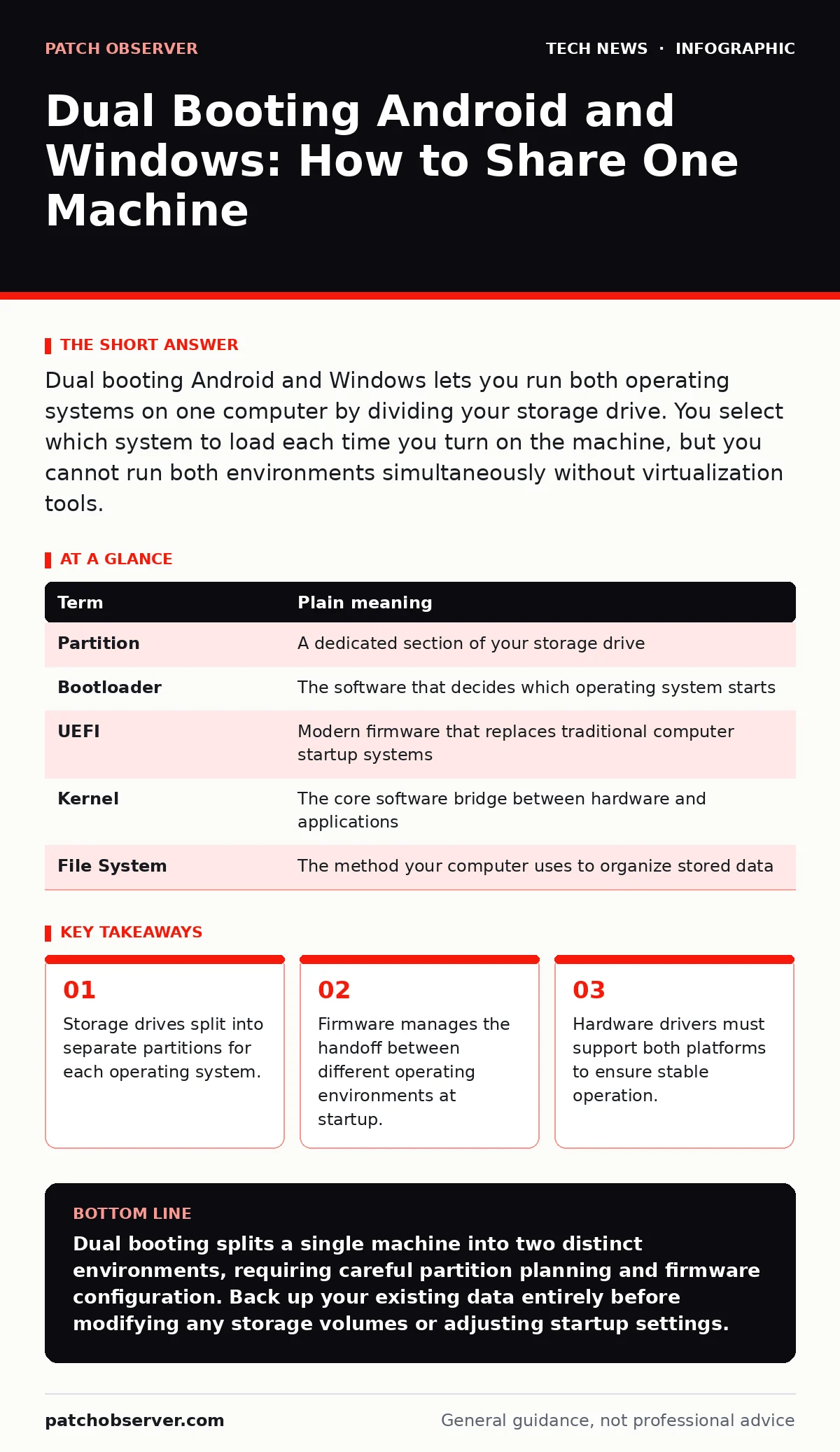
| Term | Plain meaning |
|---|---|
| Partition | A dedicated section of your storage drive |
| Bootloader | The software that decides which operating system starts |
| UEFI | Modern firmware that replaces traditional computer startup systems |
| Kernel | The core software bridge between hardware and applications |
| File System | The method your computer uses to organize stored data |
Understanding these fundamental concepts helps prevent costly mistakes during the installation process. Each term represents a specific mechanism governing how your hardware interacts with software instructions. Ignoring these definitions often results in unbootable systems and lost data.
See also: macOS security features explained and how they protect systems · Why is SAML more secure than traditional password login
Three Steps to Plan Your Dual Boot Setup
- Back up all critical data to an external location before modifying storage volumes.
- Verify your computer firmware supports alternative operating systems and unencrypted partitions.
- Allocate unallocated disk space for the incoming platform while leaving breathing room for your primary system.
Thorough preparation prevents permanent data loss and ensures a smoother transition between operating environments. Take time to research hardware compatibility limits thoroughly before modifying your computer storage architecture.
Key takeaways
- Storage drives split into separate partitions for each operating system.
- Firmware manages the handoff between different operating environments at startup.
- Hardware drivers must support both platforms to ensure stable operation.
Dual booting splits a single machine into two distinct environments, requiring careful partition planning and firmware configuration. Back up your existing data entirely before modifying any storage volumes or adjusting startup settings.
Frequently asked questions
Can I run Android and Windows at the exact same time without restarting my computer?
Running both systems simultaneously requires virtualization software rather than a dual boot configuration. Virtualization hosts one operating system inside a window on the primary desktop.
Will installing a secondary operating system erase my existing files?
Modifying storage partitions carries a high risk of data loss if performed incorrectly. Creating a complete external backup before touching any disk volumes prevents permanent file destruction.
Why does my computer skip the startup menu and load Windows automatically?
Bootloaders often get overwritten during routine operating system updates, restoring the default startup behavior. Reconfiguring your firmware boot order usually restores the selection menu.
Do mobile operating systems receive the same security patches on desktop hardware?
Alternative installations on non-standard hardware often lack automated patching mechanisms. You must manually check for software updates to maintain adequate system security.
How this guide was produced: written by the Patch Observer editorial team with AI assistance, checked against the public references listed below, and reviewed when the facts change. See our editorial policy or report an error.