How Removing Malware from an Android Phone Actually Works
Android’s permission model isolates apps, meaning most malware cannot self-delete or hide deep in the system without root access, which changes how you approach cleanup.
Removing malware from Android relies on revoking permissions, uninstalling rogue apps, and clearing cached data. Since apps run in sandboxed environments, you rarely need to reset the device unless the malware has gained administrator privileges or modified system files.
Understanding the Android Sandbox Constraint
Android operates on a permission-based sandbox model. Each application runs in its own isolated environment with limited access to system resources. This architecture prevents most malware from spreading laterally or modifying core operating system files. When you install an app, you grant it specific permissions to access your camera, contacts, or storage. Malware exploits these granted permissions rather than breaking out of the sandbox.
This isolation means that standard malware cannot delete itself if you attempt to remove it via standard settings, but it also cannot easily hide from the operating system’s package manager. You are not fighting a virus that lives in the registry or boot sector. You are fighting an application that has abused the trust you placed in it during installation. Understanding this distinction prevents you from wasting time on ineffective antivirus scans that look for system-level intrusions.
Stage 1: Identifying the Rogue Application
The first step is locating the malicious software. Many modern Android malware variants do not display an icon on your home screen. They rely on push notifications or background services to remain visible to the user, often mimicking system warnings or battery optimization alerts. You must navigate to the Settings menu, select Apps, and view all installed applications. Look for entries with blank names, generic icons, or developers you do not recognize.
Check the installation date of suspicious apps. If an app appeared shortly after you clicked a suspicious link or downloaded a file from an unknown source, it is likely the culprit. Review the permissions granted to each app. A flashlight app that requests access to your contacts or SMS messages is an immediate red flag. This discrepancy between function and permission is the most reliable indicator of malicious intent.
Stage 2: Disabling Device Administrator Rights
Before you can uninstall certain apps, you must check if they have been granted Device Administrator privileges. This is a higher level of permission that allows an app to enforce security policies, such as wiping data or locking the screen. Malware uses this privilege to prevent uninstallation. If you try to remove the app without revoking this right, the system will display an error message stating the app is a device administrator.
Navigate to Security or Device Administrators in your settings. You will see a list of apps with elevated privileges. Toggle off the switch next to any suspicious application. The system may warn you that disabling this app will reduce security. Ignore this warning if you are certain the app is malicious. Once the toggle is off, the app loses its ability to block removal. This step is critical because it breaks the malware’s hold on the device’s security framework.
Stage 3: Uninstalling and Clearing Data
With administrator rights revoked, you can proceed to uninstall the application. Go back to the Apps menu, select the rogue app, and tap Uninstall. Confirm the action. The system will remove the app’s code and associated files. However, uninstalling does not always remove cached data or residual settings. Some malware components may persist in the app’s data folder if the uninstall process is interrupted or if the app created secondary services.
After uninstalling, clear the cache of the Google Play Store and the Play Services app. These components sometimes cache malicious installers or update mechanisms. Go to Settings, Apps, find Google Play Store, and select Storage. Tap Clear Cache and Clear Data. Repeat this for Google Play Services. This ensures that the store does not automatically reinstall the malicious package if you accidentally trigger a restore or update.
Stage 4: Checking for Persistent Notifications and Widgets
Some malware persists by creating persistent notifications or home screen widgets that keep the app’s process alive in the background. Even after uninstalling the main app, a widget may remain on your home screen. Long-press the widget and drag it to the uninstall or remove area. If the widget refuses to move, it may be tied to a system-level component or a root exploit.
Check your notification shade for any alerts that you did not request. If a notification remains after the app is uninstalled, it indicates that another app is maintaining the service. You may need to identify and uninstall that secondary app as well. This layered approach is necessary because malware often uses multiple apps to ensure at least one component survives your cleanup efforts.
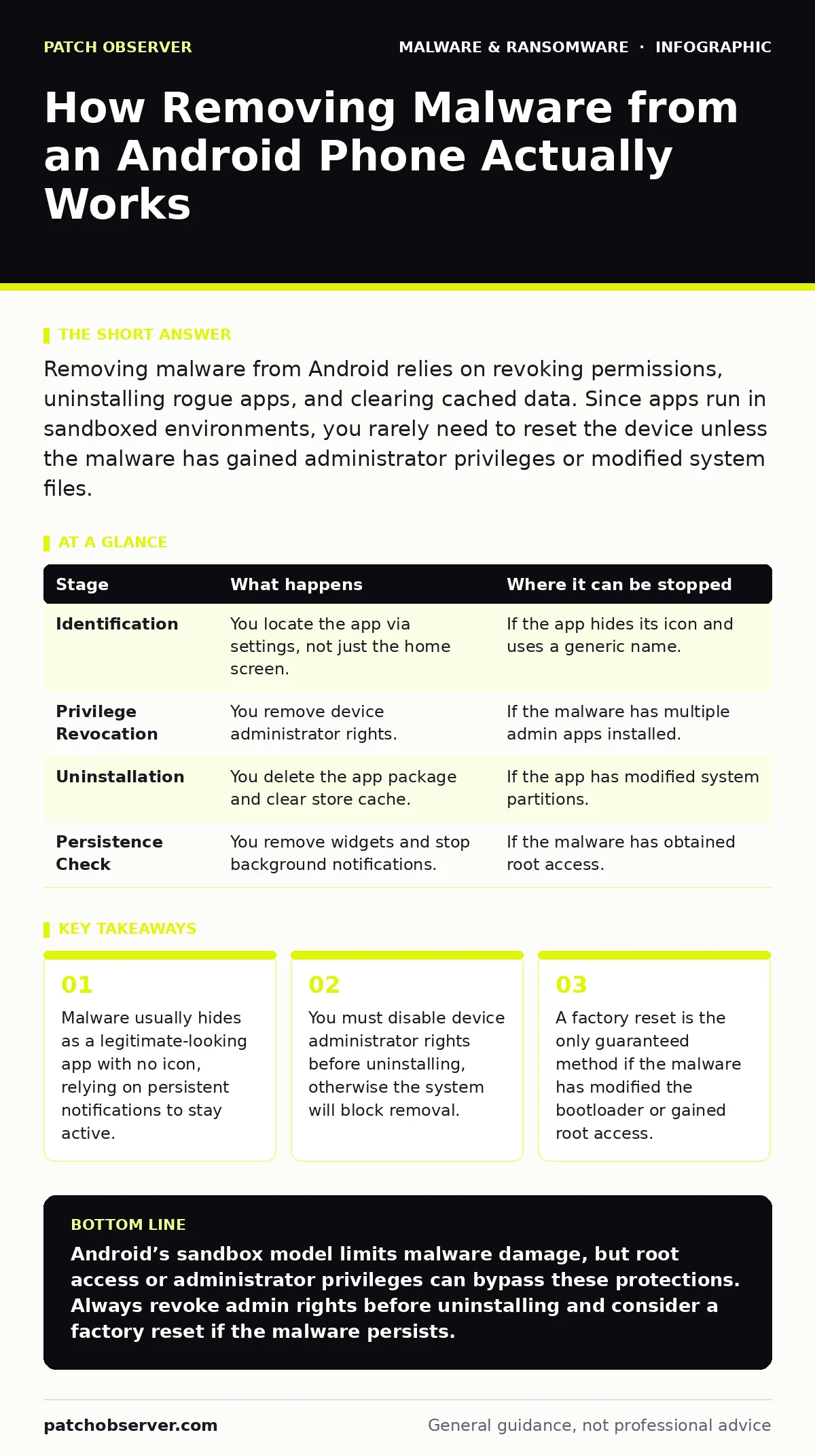
| Stage | What happens | Where it can be stopped |
|---|---|---|
| Identification | You locate the app via settings, not just the home screen. | If the app hides its icon and uses a generic name. |
| Privilege Revocation | You remove device administrator rights. | If the malware has multiple admin apps installed. |
| Uninstallation | You delete the app package and clear store cache. | If the app has modified system partitions. |
| Persistence Check | You remove widgets and stop background notifications. | If the malware has obtained root access. |
See also: Microsoft Defender Antivirus Mistakes That Leave Systems Exposed · Email Attachment Scanning: 6 Misunderstandings That Leave Gaps
Limits of Standard Removal Procedures
Standard removal procedures fail if the malware has gained root access. Root access allows an application to bypass the sandbox and modify system files. In this scenario, the malware can reinstall itself after deletion, hide from the app list, or inject code into system processes. You cannot remove root-level malware through standard settings. The only reliable method is a factory reset, which wipes the entire device and reinstalls the operating system.
A factory reset is not a perfect solution if the bootloader is unlocked or if the malware has infected the recovery partition. In these rare cases, you may need to flash the official firmware image from the manufacturer. This process requires technical skill and carries the risk of bricking the device if done incorrectly. For most users, a factory reset is the final step when standard removal fails. Always back up your contacts and photos to a cloud service before resetting, but do not restore app data, as it may contain the malware.
Preventing Re-infection Through Hardening
Removing malware is only half the battle. You must prevent re-infection by hardening your device. Enable Google Play Protect, which scans apps for known malicious behavior. While not perfect, it provides a baseline of protection against common threats. Disable installation from unknown sources in your settings. This prevents you from accidentally installing apps outside the official Play Store.
Regularly update your operating system and apps. Updates patch security vulnerabilities that malware exploits. If you must install apps from outside the Play Store, use a separate user profile or a sandboxed environment to isolate the risk. This approach limits the damage if the app turns out to be malicious. For deeper insights on securing your device, refer to our guide on device hardening. Additionally, understanding the difference between adware and true malware can help you prioritize your cleanup efforts, as discussed in our piece on adware.
When to Seek Professional Analysis
If you suspect the malware is sophisticated or has accessed sensitive data, do not rely on standard removal. The malware may have exfiltrated your credentials or banking information. Change all passwords from a different, clean device. Contact your bank to monitor for fraudulent activity. If the device is part of a managed fleet, isolate it from the network to prevent lateral movement.
For complex cases, consider dynamic malware analysis. This process involves running the app in a controlled, isolated environment to observe its behavior. It helps identify hidden payloads and communication channels. This technique is useful for understanding the scope of an infection but requires specialized tools and expertise. If you are dealing with trojanized software that mimics legitimate applications, professional analysis can reveal the true nature of the threat.
Key takeaways
- Malware usually hides as a legitimate-looking app with no icon, relying on persistent notifications to stay active.
- You must disable device administrator rights before uninstalling, otherwise the system will block removal.
- A factory reset is the only guaranteed method if the malware has modified the bootloader or gained root access.
Android’s sandbox model limits malware damage, but root access or administrator privileges can bypass these protections. Always revoke admin rights before uninstalling and consider a factory reset if the malware persists.
Frequently asked questions
Can I remove malware without a factory reset?
Yes, if the malware has not gained root access or modified system files. Revoking administrator rights and uninstalling the app usually suffices.
Does an antivirus app remove malware automatically?
Most antivirus apps can detect and remove known malware signatures. However, they may miss new or custom variants. Manual removal is often more reliable.
What if the malware keeps coming back after uninstalling?
This indicates the malware has multiple components or has gained root access. You must perform a factory reset to remove it completely.
Is it safe to back up data from an infected phone?
Back up only personal files like photos and contacts. Do not back up app data or settings, as they may contain the malware.
How this guide was produced: written by the Patch Observer editorial team with AI assistance, checked against the public references listed below, and reviewed when the facts change. See our editorial policy or report an error.