Microsoft Defender Antivirus Mistakes That Leave Systems Exposed
Misconfigured cloud-delivered protection often blocks malware while legitimate administrative scripts fail silently, creating a false sense of security that delays incident response.

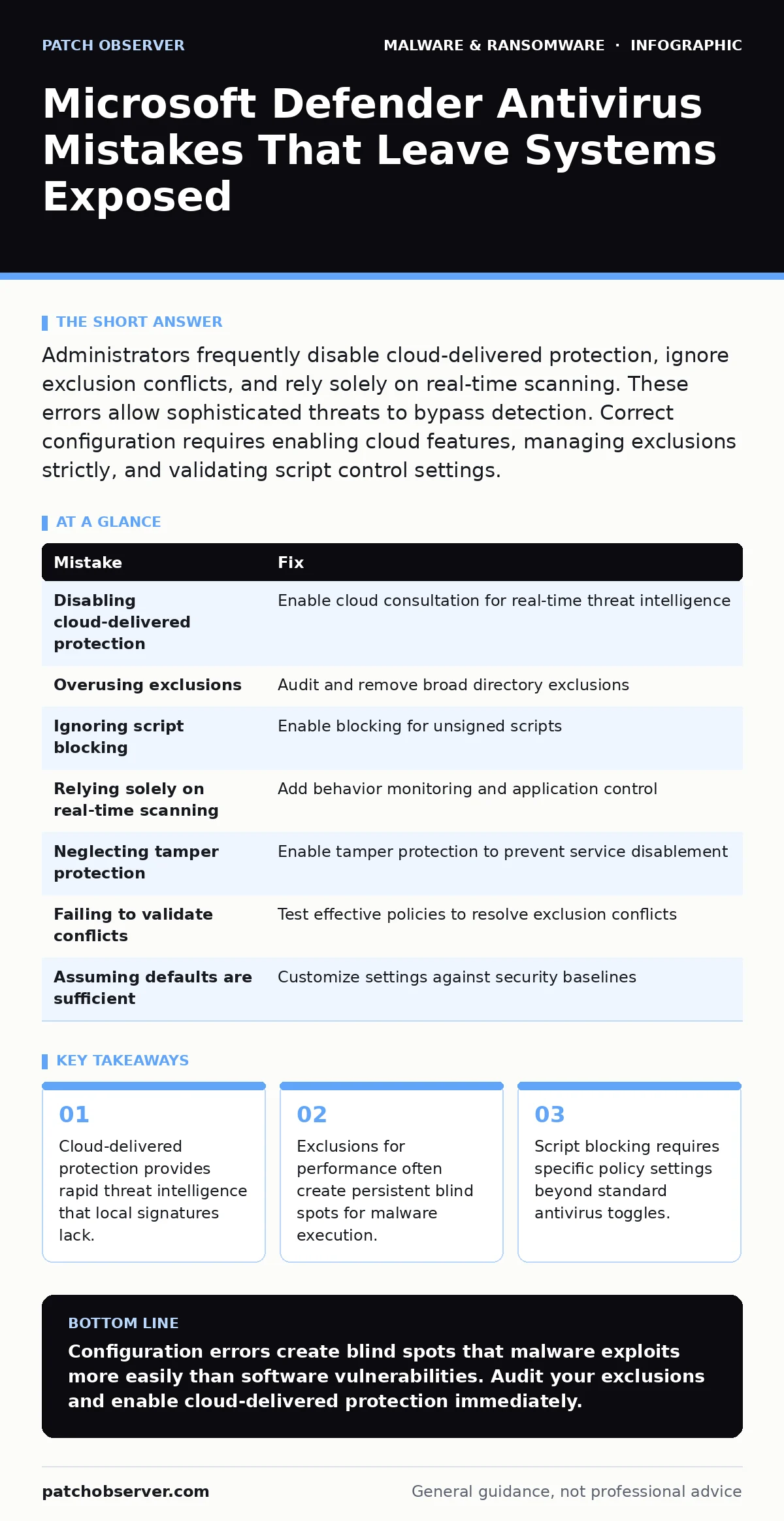
Administrators frequently disable cloud-delivered protection, ignore exclusion conflicts, and rely solely on real-time scanning. These errors allow sophisticated threats to bypass detection. Correct configuration requires enabling cloud features, managing exclusions strictly, and validating script control settings.
Mistake 1: Disabling Cloud-Delivered Protection
Cloud-delivered protection allows the engine to check files against a constantly updated threat database without waiting for local signature updates. Disabling this feature forces the system to rely only on static definitions stored on the device. This significantly increases the window of exposure to new threats.
Why it hurts: Local signature updates occur on a fixed schedule. Malware variants created between updates bypass local checks. Without cloud consultation, the antivirus cannot identify zero-day exploits or recently observed malicious hashes. The system appears protected but lacks current intelligence.
The fix: Enable cloud-delivered protection in the security policy. This setting allows the engine to send suspicious file hashes to the cloud for immediate analysis. Ensure network connectivity permits these outbound checks. Review logs to confirm cloud queries are succeeding rather than timing out.
Mistake 2: Overusing File and Process Exclusions
Exclusions tell the antivirus engine to ignore specific files, folders, or processes. Administrators often add broad exclusions to resolve performance complaints or application compatibility issues. This removes security scrutiny from those paths entirely.
Why it hurts: Malware often masquerades as legitimate processes or drops payloads in excluded directories. If a folder is excluded, any executable placed there runs without inspection. This creates a persistent blind spot that attackers exploit to establish persistence. The antivirus engine never sees the malicious activity.
The fix: Audit all exclusions regularly. Remove any broad directory exclusions. Replace them with specific file hash exclusions for known safe applications. Test exclusions in a isolated environment before applying them to production. Monitor performance metrics to ensure specific exclusions resolve the issue.
Mistake 3: Ignoring Script File Blocking
Script file blocking prevents the execution of unsigned or untrusted scripts such as PowerShell, JavaScript, and VBScript. Many administrators rely on standard antivirus scanning to catch malicious scripts. This approach is insufficient for modern attack vectors.
Why it hurts: Malicious scripts often do not contain known malicious signatures. They execute commands in memory, leaving no file on disk for traditional scanning. If script blocking is disabled, an attacker can use legitimate tools to deploy payloads. The antivirus engine sees only a standard interpreter process, not the malicious logic.
The fix: Enable script file blocking for all supported languages. Configure the policy to allow only signed scripts from trusted publishers. This prevents unsigned payloads from executing even if they evade signature detection. Review application compatibility to ensure critical workflows are not broken.
Mistake 4: Relying Solely on Real-Time Scanning
Real-time scanning inspects files as they are accessed. It is the primary defense layer for most users. However, it is reactive. It only checks files when they are opened, created, or modified.
Why it hurts: Attackers can stage malware on a system and wait for execution. Real-time scanning may miss files that are dropped but not immediately accessed. It also does not inspect network traffic or memory resident threats. Relying only on this layer leaves gaps in network-based attacks or fileless malware scenarios.
The fix: Combine real-time scanning with behavior monitoring. Enable control of firewall settings if available. Use application control policies to restrict executable sources. This multi-layered approach catches threats that bypass static file inspection. Monitor system behavior for anomalies rather than just known bad files.
Mistake 5: Neglecting Tamper Protection
Tamper protection prevents unauthorized changes to security settings. Without it, local administrators or malware with elevated privileges can disable the antivirus engine. This is a common initial step for ransomware deployment.
Why it hurts: Malware often targets the security service first. If tamper protection is off, the malware stops the antivirus service and deletes logs. The system loses visibility and protection instantly. Incident response becomes difficult because the security tool is offline. The attacker gains full control of the endpoint.
The fix: Enable tamper protection at the highest security level. This requires administrative consent to change critical settings. Ensure that only designated security administrators have the necessary rights to modify these settings. Regularly audit logs for attempts to disable tamper protection.
See also: Email Attachment Scanning: 6 Misunderstandings That Leave Gaps · Script Blocking Misunderstandings That Leave Systems Exposed
Mistake 6: Failing to Validate Exclusion Conflicts
Exclusion conflicts occur when multiple policies apply to the same file or process. One policy may exclude a folder for performance, while another tries to scan it. The behavior depends on the order of evaluation.
Why it hurts: Conflicting policies can lead to unexpected behavior. A file might be excluded when it should be scanned, or vice versa. This creates inconsistent protection across the environment. Troubleshooting becomes complex because the effective policy is not obvious. Security gaps emerge from misconfigured policy layers.
The fix: Use the effective policy view to determine the final configuration. Test specific scenarios in a lab environment. Document all exclusions and their business justification. Regularly review policy hierarchy to ensure security policies take precedence over performance exclusions.
Mistake 7: Assuming Default Settings Are Sufficient
Default settings provide basic protection but are not optimized for enterprise environments. They often lack strict controls for advanced threats. They may also include performance trade-offs that are not suitable for high-security zones.
Why it hurts: Default configurations may allow risky behaviors like unsigned script execution. They might not enable all cloud features or advanced protections. This leaves the system vulnerable to sophisticated attacks that exploit default gaps. The security posture remains weak despite having the software installed.
The fix: Review default settings against security baselines. Enable all recommended advanced features. Customize policies to match the specific risk profile of each device group. Regularly update settings as new threats and features emerge. Document deviations from the baseline.
| Mistake | Fix |
|---|---|
| Disabling cloud-delivered protection | Enable cloud consultation for real-time threat intelligence |
| Overusing exclusions | Audit and remove broad directory exclusions |
| Ignoring script blocking | Enable blocking for unsigned scripts |
| Relying solely on real-time scanning | Add behavior monitoring and application control |
| Neglecting tamper protection | Enable tamper protection to prevent service disablement |
| Failing to validate conflicts | Test effective policies to resolve exclusion conflicts |
| Assuming defaults are sufficient | Customize settings against security baselines |
Key takeaways
- Cloud-delivered protection provides rapid threat intelligence that local signatures lack.
- Exclusions for performance often create persistent blind spots for malware execution.
- Script blocking requires specific policy settings beyond standard antivirus toggles.
Configuration errors create blind spots that malware exploits more easily than software vulnerabilities. Audit your exclusions and enable cloud-delivered protection immediately.
Frequently asked questions
Does Microsoft Defender Antivirus protect against ransomware?
It provides detection and prevention capabilities against known ransomware variants. However, no single tool offers complete protection. Combining it with backups and user training is necessary.
How often should I review antivirus exclusions?
Review exclusions quarterly or after major application updates. Remove any exclusions that are no longer required. This maintains a strong security baseline while ensuring performance.
Can malware disable Microsoft Defender Antivirus?
Malware can attempt to disable the service if tamper protection is off. Enabling tamper protection prevents unauthorized changes to the security settings. This ensures the engine remains active during an attack.
Is cloud-delivered protection required for offline machines?
Cloud-delivered protection requires internet access to function. For offline machines, ensure local signatures are up to date before disconnecting. This provides the best possible protection without cloud connectivity.
How this guide was produced: written by the Patch Observer editorial team with AI assistance, checked against the public references listed below, and reviewed when the facts change. See our editorial policy or report an error.