How Adware Works: The Step-by-Step Infection Cycle
Adware exploits software bundling and permission mismanagement to install itself quietly, making standard removal tools often ineffective without system image restoration.

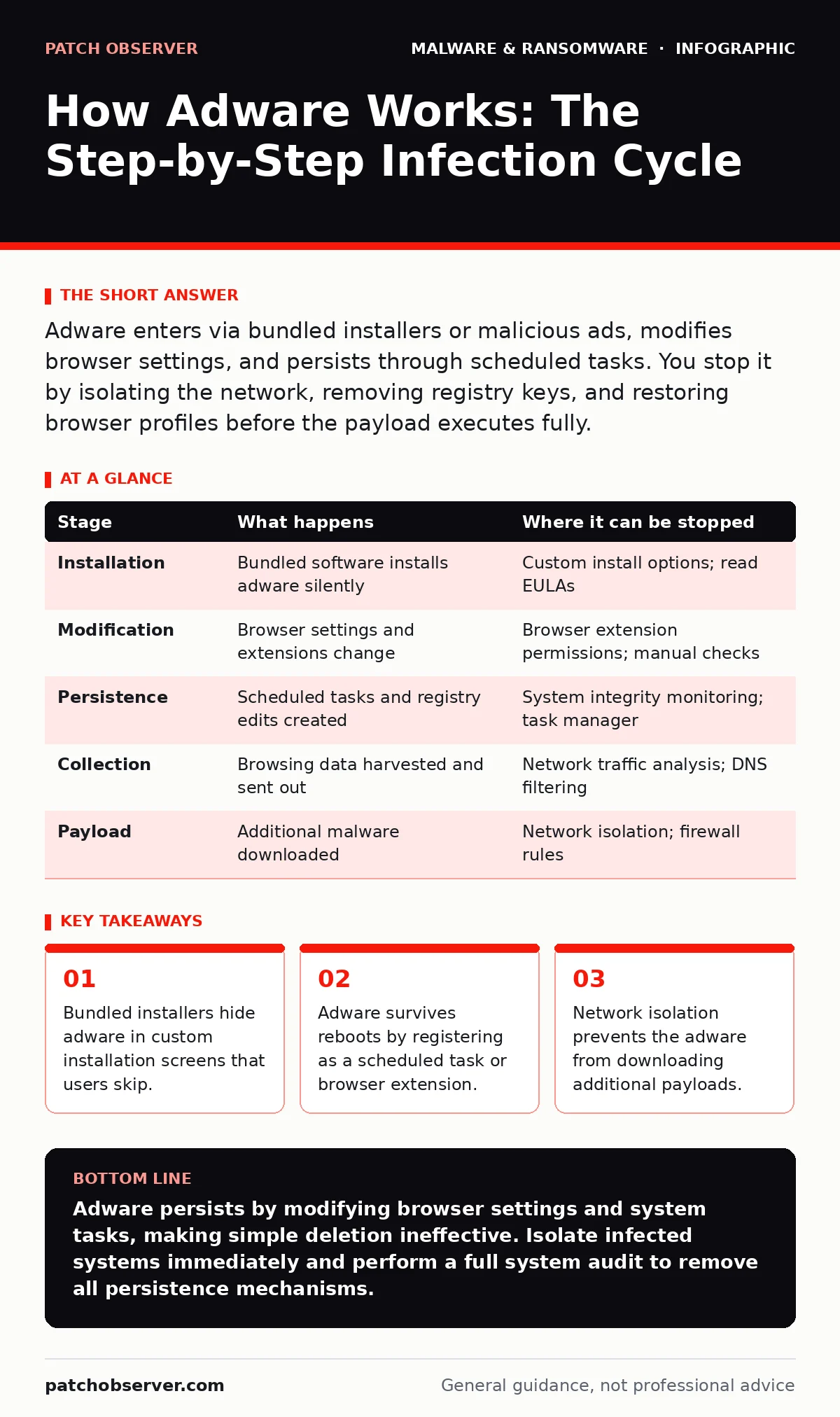
Adware enters via bundled installers or malicious ads, modifies browser settings, and persists through scheduled tasks. You stop it by isolating the network, removing registry keys, and restoring browser profiles before the payload executes fully.
The Silent Entry Point
Adware rarely arrives as a standalone executable. It hides inside legitimate software packages through a technique called software bundling. When you download a free application, the installer often includes optional offers. These offers are frequently adware components.
The installer presents a custom interface that obscures these checkboxes. Users typically click "Next" repeatedly to finish the installation quickly. This behavior allows the adware to register itself on your system before you notice any change. The flaw relies on human impatience and complex installation wizards.
Browser Modification
Once installed, the adware targets your web browser. It changes your home page, new tab URL, and default search engine. These changes redirect your queries through the attacker’s search partner. You see sponsored results or fake news stories designed to generate click revenue.
The adware may also install a browser extension. This extension has permission to read and change data on websites you visit. It can inject ads into pages that normally do not display them. This injection happens locally on your device, not on the server hosting the website.
Persistence Mechanisms
Adware aims to survive system reboots and user attempts to remove it. It achieves this by modifying system settings that control startup behavior. On Windows, it may add entries to the Run registry key or create scheduled tasks. These tasks launch the adware process at specific intervals or system events.
On macOS, it might add launch agents or launch daemons. These are configuration files that tell the operating system to start the adware automatically. The adware may also disable your security software temporarily. This prevents your antivirus from detecting the malicious files.
Data Collection and Profiling
The primary goal of adware is profit through advertising. To maximize this profit, the adware collects data about your browsing habits. It tracks which sites you visit, what you search for, and how long you stay on each page. This data creates a profile of your interests.
The adware sends this profile to remote servers. The servers then serve targeted ads that are more likely to be clicked. This targeting is effective but intrusive. You may notice ads for products you recently searched for, even on unrelated websites. This indicates your browsing data has been harvested.
Secondary Payload Delivery
Some adware serves as a delivery mechanism for more dangerous malware. After establishing persistence, the adware checks in with a command and control server. The server may instruct the adware to download additional files. These files could be trojans, ransomware, or spyware.
This stage transforms a nuisance into a severe security incident. The initial adware infection lowers your defenses. It makes the subsequent installation of malware easier and less detectable. The adware acts as a foothold for further compromise.
Network Isolation and Detection
Detecting adware requires looking beyond standard antivirus alerts. Adware often uses legitimate domains and protocols, making it hard to distinguish from normal traffic. You must monitor for unusual outbound connections. Look for processes sending large amounts of data to unknown servers.
Isolating the infected machine from the network stops data exfiltration. It also prevents the adware from downloading additional payloads. This step is critical for containing the threat. Do not disconnect the machine from power; keep it running to preserve memory evidence if needed.
Removal and Recovery
Removing adware is more complex than deleting a file. You must undo all changes made to the system. This includes removing registry entries, scheduled tasks, and browser extensions. Standard uninstallers often leave behind these persistence mechanisms.
You may need to use specialized removal tools or manual cleanup procedures. If the infection is deep, restoring the system from a clean backup is the most reliable method. This ensures no hidden components remain. After removal, you must harden the system to prevent reinfection.
| Stage | What happens | Where it can be stopped |
|---|---|---|
| Installation | Bundled software installs adware silently | Custom install options; read EULAs |
| Modification | Browser settings and extensions change | Browser extension permissions; manual checks |
| Persistence | Scheduled tasks and registry edits created | System integrity monitoring; task manager |
| Collection | Browsing data harvested and sent out | Network traffic analysis; DNS filtering |
| Payload | Additional malware downloaded | Network isolation; firewall rules |
Preventing Reinfection
Preventing adware requires changing how you install and update software. Always download applications from official vendor websites. Avoid third-party download portals that often bundle adware. During installation, choose custom or advanced options. Review every screen carefully before proceeding.
Keep your browser and operating system updated. Patches close vulnerabilities that adware might exploit to elevate privileges. Use a reputable ad blocker to reduce exposure to malicious advertisements. These blocks stop drive-by downloads and fake update prompts.
Adware is a common entry point for more serious threats. Understanding its lifecycle helps you identify early signs of infection. The key is vigilance during installation and regular system audits. If you suspect an infection, isolate the machine immediately. Check for unauthorized browser extensions and scheduled tasks.
For mobile devices, the process differs slightly. You may find helpful steps in our guide on removing malware from an Android phone. On desktops, distinguishing between legitimate and malicious behavior can be tricky. Our article on antivirus false positives explains how to verify alerts.
If you need to analyze suspicious files, dynamic malware analysis reveals behavior without risking your main system. Always ensure your recovery point objective is met to restore clean states quickly. Beware of trojanized software that disguises itself as legitimate tools.
USB malware can also spread adware across networks. Implement device hardening policies to restrict unauthorized USB usage. Browser hijackers are a common symptom of adware; remove them promptly. By understanding these mechanisms, you can protect your environment more effectively.
Final Verification
After removal, verify that the system is clean. Monitor network traffic for unusual activity. Check browser settings periodically for changes. Ensure that all persistence mechanisms have been eliminated. If any doubt remains, wipe and reinstall the operating system. This is the only way to guarantee a clean state.
Maintain good security hygiene to prevent future infections. Educate users about the risks of bundled software. Encourage the use of custom installation options. Regular updates and strong network controls reduce the attack surface. Stay proactive in your defense strategy.
Key takeaways
- Bundled installers hide adware in custom installation screens that users skip.
- Adware survives reboots by registering as a scheduled task or browser extension.
- Network isolation prevents the adware from downloading additional payloads.
Adware persists by modifying browser settings and system tasks, making simple deletion ineffective. Isolate infected systems immediately and perform a full system audit to remove all persistence mechanisms.
Frequently asked questions
How do I know if my computer has adware?
Look for unwanted browser extensions, changed home pages, and excessive pop-up ads. Monitor for unknown processes running in the background.
Can adware steal my passwords?
Basic adware focuses on browsing data for ads. However, some advanced variants can log keystrokes or steal cookies. Treat all adware as a potential data leak.
Does antivirus software remove all adware?
Standard antivirus may miss adware that looks like legitimate software. You often need specialized removal tools or manual cleanup to eliminate all traces.
Is adware a virus?
No, adware is not a virus. It does not replicate itself. However, it can deliver viruses or other malware after gaining access to your system.
How this guide was produced: written by the Patch Observer editorial team with AI assistance, checked against the public references listed below, and reviewed when the facts change. See our editorial policy or report an error.