Browser Security Settings Mistakes That Leave You Exposed
Most browser security failures stem from default configurations that prioritize convenience over isolation, allowing silent data leakage before you realize the connection is compromised.

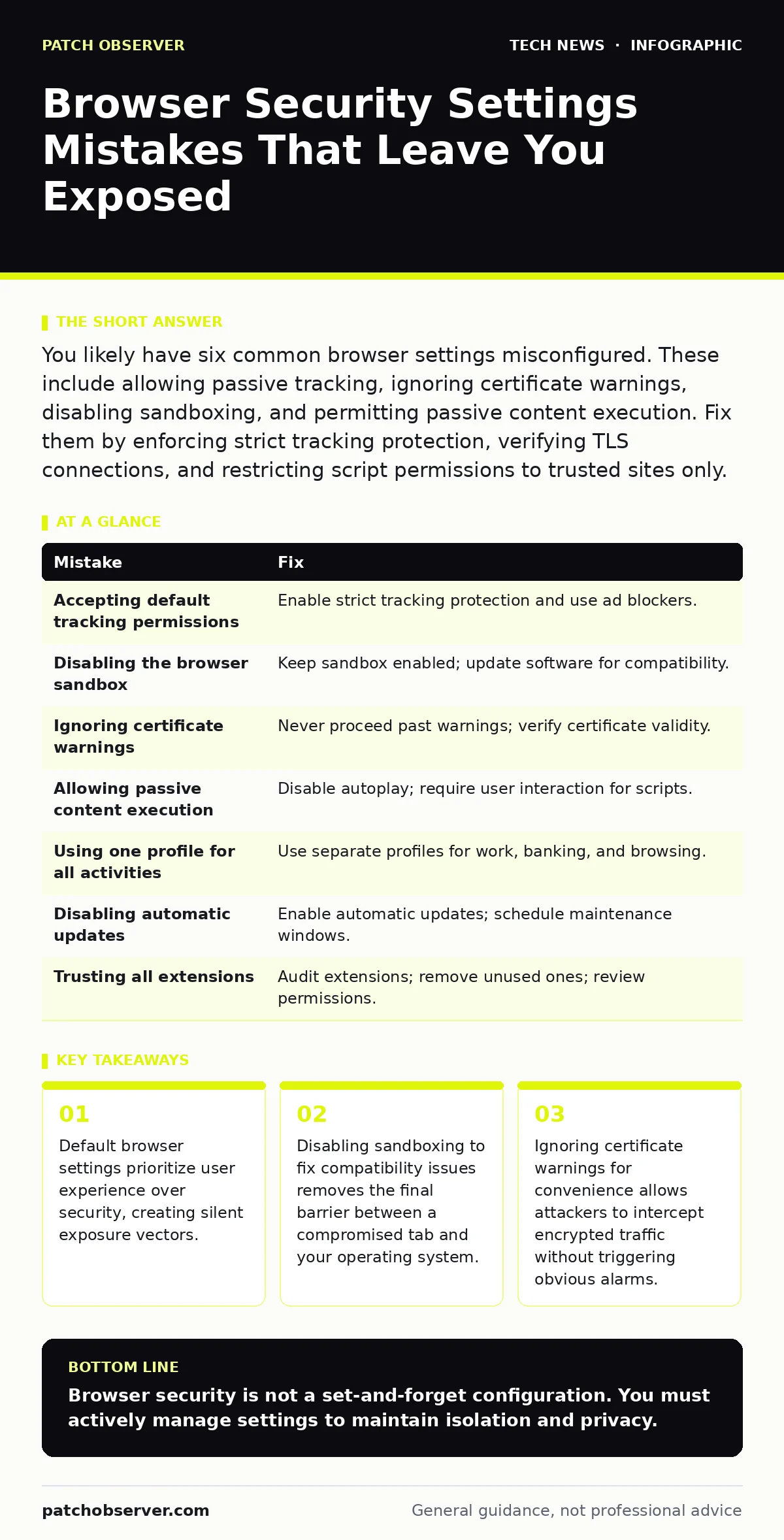
You likely have six common browser settings misconfigured. These include allowing passive tracking, ignoring certificate warnings, disabling sandboxing, and permitting passive content execution. Fix them by enforcing strict tracking protection, verifying TLS connections, and restricting script permissions to trusted sites only.
Browser configurations are the first line of defense for web interactions. Most users accept default settings without review. These defaults often prioritize convenience over security. The result is a predictable attack surface that adversaries map and exploit routinely. You can close these gaps by adjusting specific settings. The effort is minimal, but the reduction in risk is significant.
Mistake 1: Accepting Default Tracking Permissions
Modern browsers allow third-party cookies and trackers by default. This enables advertisers to build detailed profiles of your browsing habits across different sites. While this does not directly install malware, it exposes your behavioral data to any entity that can read those cookies.
Why it hurts:
Data leakage occurs silently. Your identity becomes a commodity sold to brokers who may sell it to malicious actors. This information aids in crafting targeted phishing campaigns that appear highly legitimate. You lose control over your digital footprint without gaining any tangible benefit.
The fix:
Enable strict tracking protection in your browser settings. This blocks cross-site tracking cookies and prevents fingerprinting scripts from running. You must accept that some websites may break or function poorly. Use an ad blocker extension as a secondary layer to reduce the load on your browser’s native filters.
Mistake 2: Disabling the Browser Sandbox
The sandbox is a security mechanism that isolates the browser from the rest of your operating system. It runs each tab in a restricted environment with limited permissions. Some users disable this feature to resolve compatibility issues with legacy plugins or software.
Why it hurts:
Removing the sandbox gives a compromised webpage direct access to your system resources. If an attacker exploits a vulnerability in the browser engine, they can execute code on your host machine. This bypasses the primary containment strategy designed to limit the blast radius of a breach. You trade a minor compatibility fix for total system exposure.
The fix:
Keep the sandbox enabled at all times. If a specific application fails to run, investigate alternative solutions rather than disabling security controls. Update your browser and plugins to versions that support modern standards. Legacy software often requires outdated environments that are inherently insecure.
Mistake 3: Ignoring Certificate Warnings
Browsers display prominent warnings when a website’s TLS certificate is invalid or expired. Users often click "Advanced" and "Proceed anyway" to access the site. This action tells the browser to trust a connection that fails cryptographic verification.
Why it hurts:
You are disabling the verification of the site’s identity. An attacker can perform a man-in-the-middle attack by presenting a fake certificate. Your browser will not warn you again for that session. All data you transmit, including passwords and personal information, is visible to the interceptor. This is a common tactic in public Wi-Fi environments.
The fix:
Never proceed past a certificate warning. If the site is critical, contact the administrator to resolve the certificate issue. For internal tools, ensure your organization has properly installed root certificates in the trust store. This avoids warnings while maintaining security. See our guide on network ports and protocols for details on proper certificate management.
Mistake 4: Allowing Passive Content Execution
Browsers can be configured to automatically play media or execute scripts when a page loads. This includes autoplaying videos and running JavaScript without user interaction. Many users leave these settings enabled for a seamless experience.
Why it hurts:
Automatic execution allows attackers to run malicious scripts the moment you load a page. This is known as drive-by downloading. You do not need to click anything to be infected. The script can exploit vulnerabilities in the browser or installed plugins before you even read the content. This reduces the effectiveness of user caution.
The fix:
Disable autoplay for media and scripts in your browser settings. Require user interaction to start any media or script execution. This adds a step that prevents automatic exploitation. You can whitelist trusted sites if necessary, but keep the default restrictive.
Mistake 5: Using the Same Profile for All Activities
Many users operate a single browser profile for work, personal banking, and casual browsing. This consolidates all cookies, passwords, and history into one storage area. It creates a single point of failure for your digital identity.
Why it hurts:
If a malicious script accesses your storage, it gains access to all your sessions. A compromise on a low-risk site can lead to theft of credentials from high-security sites. This violates the principle of least privilege. You expose your entire digital life to risks associated with any single site you visit.
The fix:
Use separate browser profiles for different activities. Create one profile for work, another for banking, and a third for general browsing. Use distinct passwords for each profile. This isolates potential breaches and limits the damage. Consider using a dedicated browser for high-risk activities.
Mistake 6: Disabling Automatic Updates
Browsers receive frequent updates to patch security vulnerabilities. Some users disable automatic updates to maintain stability or control the timing of changes. This leaves the browser running on outdated code with known flaws.
Why it hurts:
Attackers actively scan for systems running unpatched software. Vulnerabilities are often public knowledge shortly after discovery. Delaying updates gives attackers a window of opportunity to exploit these flaws. You are essentially leaving the door unlocked for known threats. The convenience of stability is outweighed by the risk of exploitation.
The fix:
Enable automatic updates for your browser and all extensions. Schedule regular maintenance windows if you need to control the timing. Test updates in a non-production environment before deploying to critical systems. This balances security with operational stability. See our guide on smartphone security updates for strategies on managing update cycles across devices.
Mistake 7: Trusting All Extensions
Users install browser extensions for convenience and functionality. Many of these extensions request broad permissions, including access to all websites and data. Users rarely review these permissions before installation.
Why it hurts:
Extensions run with high privileges within the browser. A malicious or compromised extension can read your browsing data, inject scripts, and steal credentials. The browser trusts the extension as part of its own ecosystem. You are inviting unknown code into your secure environment. This is a common vector for data theft.
The fix:
Audit your installed extensions regularly. Remove any that are unused or unnecessary. Only install extensions from reputable sources with good reviews. Review the permissions requested by each extension before installation. Reject any extension that asks for more access than it needs. See our guide on remote work security for best practices on managing software in distributed environments.
| Mistake | Fix |
|---|---|
| Accepting default tracking permissions | Enable strict tracking protection and use ad blockers. |
| Disabling the browser sandbox | Keep sandbox enabled; update software for compatibility. |
| Ignoring certificate warnings | Never proceed past warnings; verify certificate validity. |
| Allowing passive content execution | Disable autoplay; require user interaction for scripts. |
| Using one profile for all activities | Use separate profiles for work, banking, and browsing. |
| Disabling automatic updates | Enable automatic updates; schedule maintenance windows. |
| Trusting all extensions | Audit extensions; remove unused ones; review permissions. |
Key takeaways
- Default browser settings prioritize user experience over security, creating silent exposure vectors.
- Disabling sandboxing to fix compatibility issues removes the final barrier between a compromised tab and your operating system.
- Ignoring certificate warnings for convenience allows attackers to intercept encrypted traffic without triggering obvious alarms.
Browser security is not a set-and-forget configuration. You must actively manage settings to maintain isolation and privacy.
Frequently asked questions
Does using a private browsing mode protect me from all threats?
No. Private mode only prevents local storage of history and cookies. It does not protect against malware, phishing, or network-level attacks.
Can I use hardware security modules for browser authentication?
Yes. Hardware security modules can store cryptographic keys for two-factor authentication. This adds a physical layer of security to your login process.
How do I know if an extension is malicious?
Check for unusual permission requests and poor reviews. Monitor for unexpected behavior like pop-ups or redirects. Remove any extension that behaves strangely.
Is it safe to use public Wi-Fi with these settings?
These settings reduce risk but do not eliminate it. Use a virtual private network to encrypt your traffic on public networks. See our guide on **guest Wi-Fi networks** for more details.
How this guide was produced: written by the Patch Observer editorial team with AI assistance, checked against the public references listed below, and reviewed when the facts change. See our editorial policy or report an error.